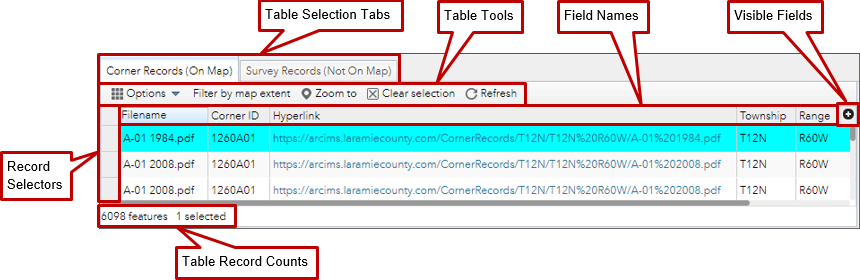
Clicking on a Field/Column Name in
the attribute table opens a selection list for sorting the attribute
table in ascending or descending order on that attribute field.
The Filename Field can't be sorted on since it is a calculated field. Use the Hyperlink Field instead.
Clicking in the blank space to the left of an attribute table record, selects that record.
Holding down the shift key and clicking in the blank space to
the left of a second attribute table record, selects it and all the
records between it and the last selected record.
Holding down the control (Ctrl) key while clicking in the
blank space to the left of an attribute table record, adds that record
to the already selected records.
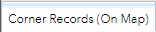
Clicking on the Corner Records (On Map) Tab activates the attribute table for the corner records.
The Corner Record Table
contains records for all survey records that were able to be
geolocated. The survey record was able to be located via an automated
script.
Survey Records (Not On Map) Tab
Clicking on the Survey Records (Not On Map) Tab activates the attribute table for the survey records.
The Survey Record Table
contains records for all survey records that were not able to be
geolocated. The survey record was not able to be located via an automated script.
Clicking on the Options tool opens a pull down menu with Filter and Show/Hide columns options.
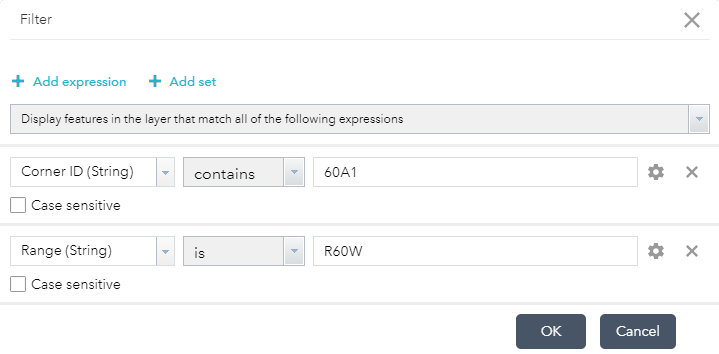
Clicking on Filter opens the Filter Dialog Box where you can create expressions to filter the table based on values of the attribute data.
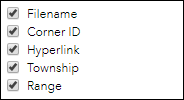
Clicking on Show/Hide Columns opens the Field/Column Selection Window. By checking or unchecking the check box next to the field names shows or hides the field respectively.
Table Filter by map extent Tool
Clicking on the Filter by map extent Tool filters the records in the table to only those records that are located in the map extent.
Table Zoom to Tool
Clicking on the Survey Records (Not On Map) Tab activates the attribute table for the survey records.
The Survey Record Table
contains records for all survey records that were not able to be
geolocated. The survey record was not able to be located via an automated script.
Table Clear selection Tool
Clicking on the Clear selection Tool deselects any records that are selected in the attribute table.
Table Refresh Tool
Clicking on the Refresh Tool updates the data in the attribute table.
Clicking on the Visible Fields Icon opens the Field/Column Selection Window. By checking or unchecking the check box next to the field names shows or hides the field respectively.